![Vault_Logo_White_Primary-1-1.png]](https://support.asbuiltvault.com/hs-fs/hubfs/Vault_Logo_White_Primary-1-1.png?height=40&name=Vault_Logo_White_Primary-1-1.png)
Overview
The following guide will help you do the following:
- Where to Manage Users & Permissions
- Understand the different User Level Access available
- Add New Users
- Accepting New User Invitations
- Edit User Permissions
- Resend Invitation
- Remove Users
Where to Manage Users & Permissions
To Manage Users & Permission settings first click 'Manage Account' in the home screen menu.

Then Scroll down to the 'Users & Permissions' Section and click on the 'Edit Pen'.
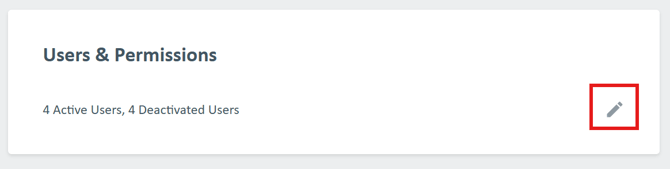
Note: This section will give you a preview of the number of Active and Deactivated Users.
User Level Access
PayLab provides a tiered level of access each role has specific permissions and limitations. These levels are as follows:
|
Account Access Type |
Permissions |
| Owner |
All Admin Permissions Plus:
|
| Admin |
|
| Viewer |
|
Important! To assign a new Owner to an account, the current Owner must make this change. This option is available in the edit field only if the user being promoted to Owner currently holds an Admin role.
Add New Users
Click 'Manage Account' in the home screen menu.

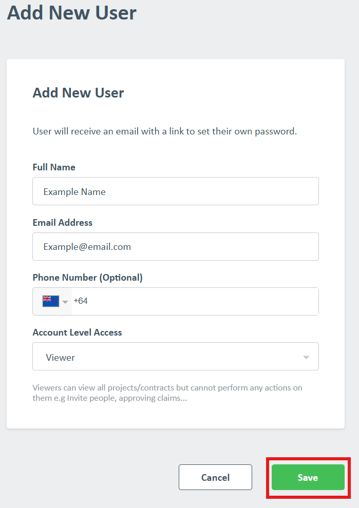
Click Add New User.

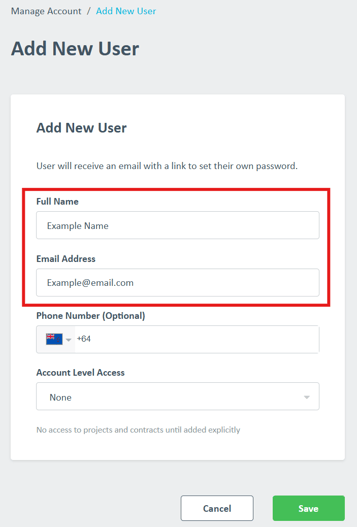
Enter the name and email of your new User within your company.
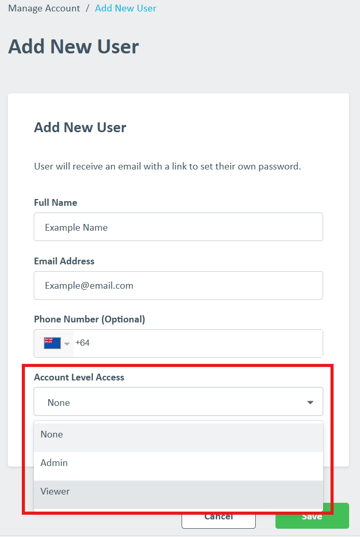
Select the appropriate Account Level Access for them.
Click 'Save', and PayLab will add them to the user list and send an email notifying them they have been invited.
Accepting New User Invitations
The newly invited user will receive an email from PayLab. They will be asked to login using either a One Time Password (OTP) or alternatively using their Microsoft Account password and MFA (Multi-Factor-Authentication) associated with that email account.
Note: The invited user must have access to their email in order to complete their access activation.
The following steps outline the process for new users whose email providers support One-Time Password (OTP) logins.
An email with subject 'Invitation to PayLab' will be sent to the new user's email.
In this email, click on the 'Open PayLab' button to begin activating access (if new) and linking the email to the PayLab Account.
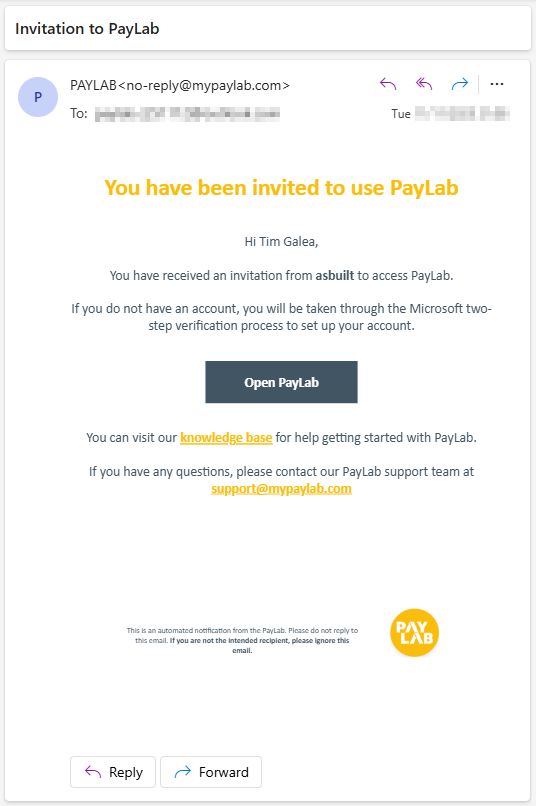
Tip! Occasionally, some email providers might prevent the 'Open PayLab' button from working as expected. If this happens, simply right-click on the button, select 'Copy Link,' and then paste the link into your web browser to proceed.
Enter the email as invited; You will be taken to a Vault-PayLab sign in screen, requesting the user to enter their user email address and begin the authentication process. Then click 'Next'.
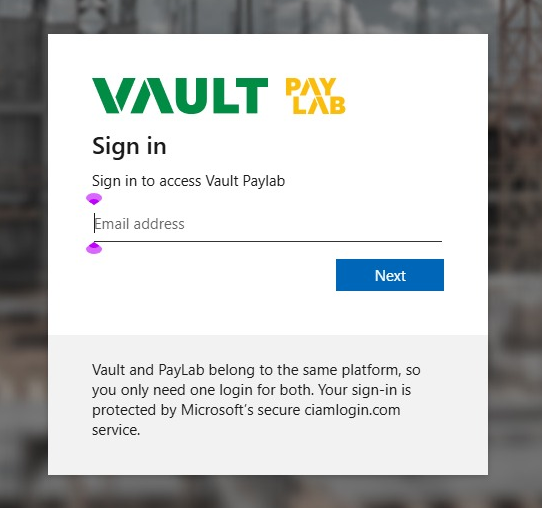
If your email provider allows OTP, A one off 'Account verification code' will be sent by email.
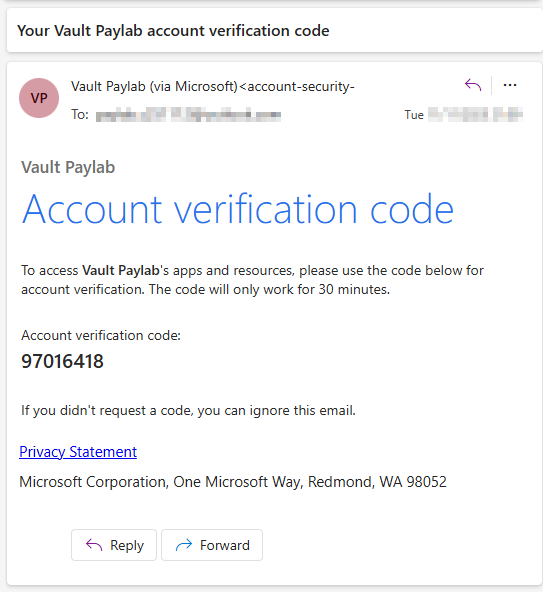
Example email sent with subject 'Your Vault PayLab account verification code', from account-security-noreply@accountprotection.microsoft.com
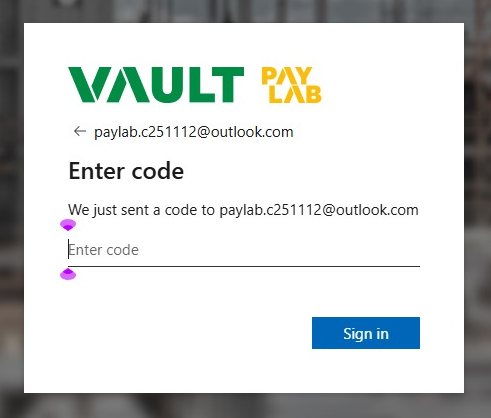
Enter the 'Account verification code' (One Time Password) from this email.
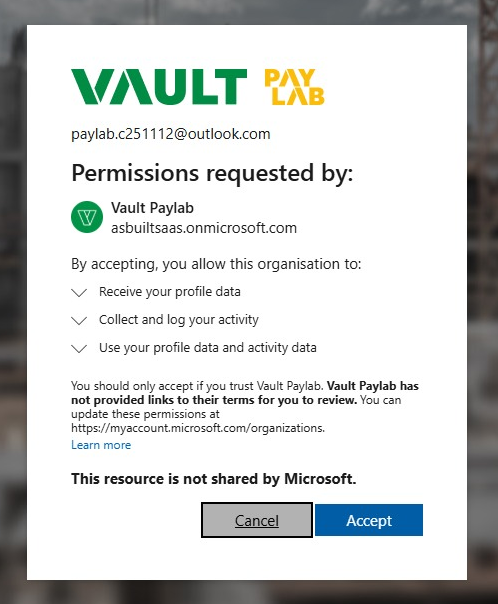
If this is the first time email address has accessed a Vault PayLab product, they will need to accept the required permissions by clicking 'Accept'.
The New User will now be taken to the PayLab Dashboard main page.
Note: Certain business email accounts may require an alternative authentication method. This could involve entering your email password, using an authenticator app, or verifying a code sent via SMS or phone call. Follow the on-screen prompts to complete the authentication process.
Edit User Permissions
PayLab Account Owners & Admins can edit user permissions as well as delete users in Paylab. The following will focus on editing details and permissions. For Resending Invitations or Deactivating Access proceed to the next sections of this guide.
To get started, click 'Manage Account' in the home screen menu.
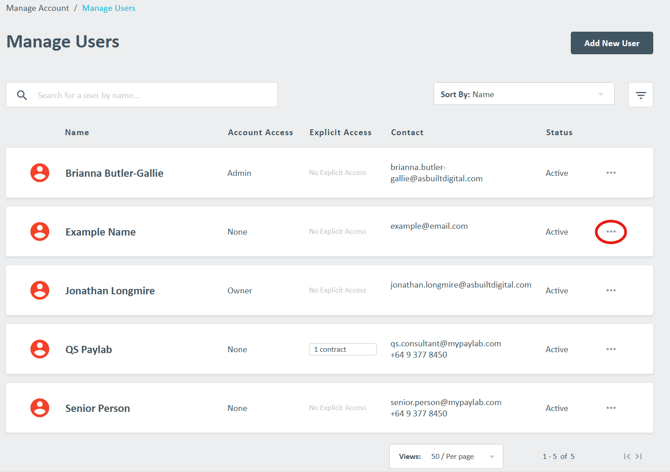
To edit a User, click the three-dot ellipsis button found on the right-hand side of the user.
Select the Permission Level you wish to change the user to. The change will be effictive immediately
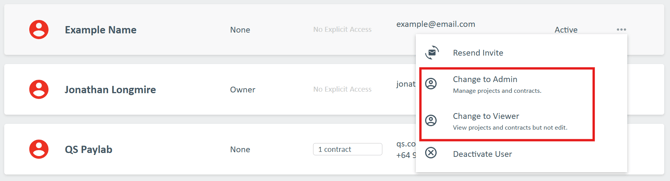
Important! To assign a new Owner to an account, the current Owner must make this change. This option is available in the edit field only if the user being promoted to Owner currently holds an Admin role.
Resend an Invitation
First ensure you're in the Manage Users & Permissions section which is covered in the first section of the guide here.
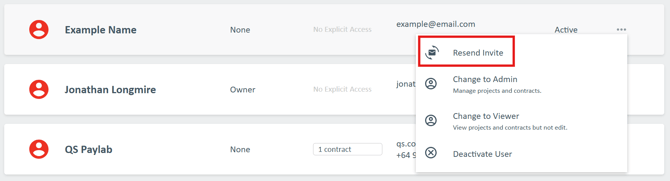
Next, click the three-dot ellipsis button found on the right-hand side of the user.
Then, click on the 'Resend Invite' button.
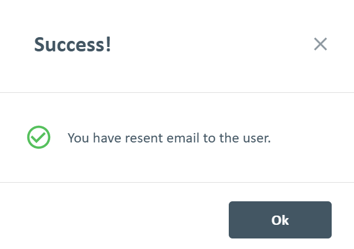
Once Action has been completed you will receive a 'Success!' pop-up message, click on the 'OK" button to complete the task and exit out of the user edit section.
Remove Users
In PayLab, users are deactivated rather than permanently removed. This approach ensures that all user activity records remain available for audit purposes, particularly when actions are associated with specific projects or contracts.
To deactivate a user first ensure you're in the Manage Users & Permissions section which is covered in the first section of the guide here.
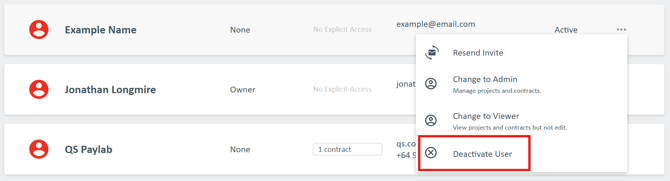
Next, click the three-dot ellipsis button found on the right-hand side of the user.
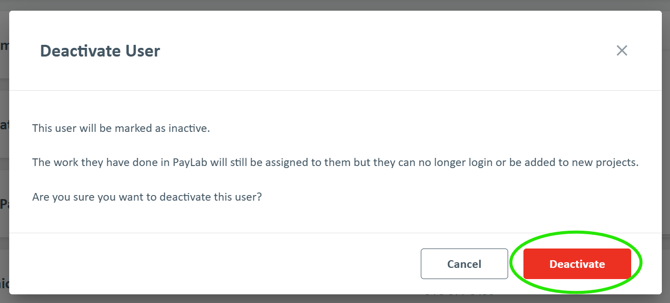
Then click the 'Deactivate User' button.
A confirmation message will appear to let you know the selected user will be marked as inactive. Their past work and project contributions will remain assigned to them for record-keeping; however, they will no longer be able to log in to your PayLab account or be added to new projects. Click ‘Deactivate’ to finalise this process.