![Vault_Logo_White_Primary-1-1.png]](https://support.asbuiltvault.com/hs-fs/hubfs/Vault_Logo_White_Primary-1-1.png?height=40&name=Vault_Logo_White_Primary-1-1.png)
Contract & Project Settings sections.
The following describes each of the sections found within the Contract and Project Settings.
Some settings are only available in the Contract or Project settings.
Some wording may vary depending on if the user is a Payer or Claimer within the associated project or contract.
-
Configure the contract settings - A run through of each settings and what they do.
- Getting to settings - how to find the place to change settings
CONTRACT MEMBERS
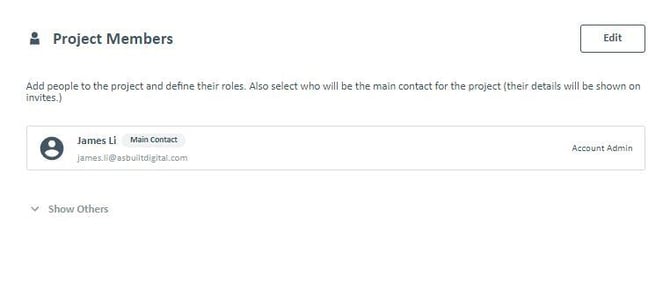
This is where you enter your details, or the main point of contact within your organisation for this particular Contract. You can also define their roles in this Contract (e.g. Account Owner, Account Admin) . If you want to add more people from your Company, you can do so in the Manage Accounts page under the Users and Permissions.
DATE SCHEDULE
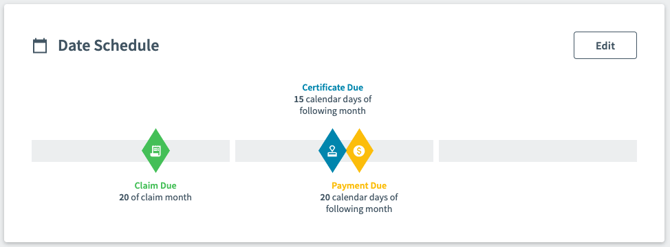
This information is likely to be on the contract you have received from your Client. Choose the appropriate number of days for each field. The settings here may have already been automatically applied if you had selected a date schedule during your Project setup.
Working days exclude Saturday and Sunday (despite the fact we know you probably work at least one of those days anyway).
Pay Claim Due At PayLab, we recommend you setting the Pay Claim Due day to be the 25th day of the claim month at the latest. This will enable you enough time to investigate the project claim and submit it to your Client in time for month-end.
Payment Schedule Due This will change depending on the terms you have agreed with the Payer. The default provisions in the Construction Contracts Act 2002 in New Zealand say this must be no later than the 20th day of the following month after submitting your Payment Claim.
Payment Due Again this could change according to your agreed terms, however the default provisions in the applicable act say this must be no later than the 20th day of the following month after submitting your Payment Claim.
CLAIM WORKFLOW
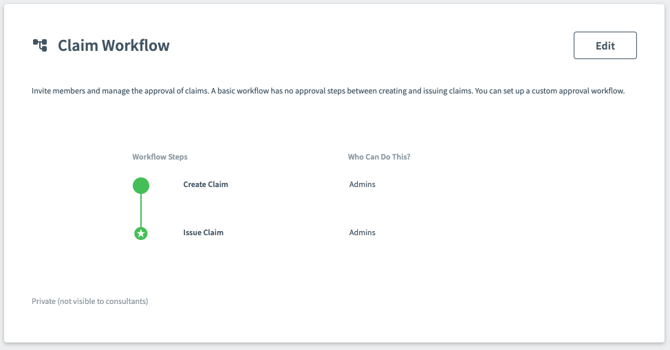
If your Claims or Payment Schedules require multiple internal approvals, use these workflows to ensure everyone required signs off on them each month. For further detail on how to set these up, go to our Approval Workflows article.
TIME ZONE
Time Zones are automatically populated based on project address and affect how times are displayed for Claim and Payment Schedule dates.

BASE CONTRACT, VARIATIONS, MATERIALS
As stated earlier, a Base Contract must be setup in order for you to start your Contract. Variations and Materials can be added in later as required. These items can be setup directly on PayLab or imported through by excel files (template and instructions provided!). Please click on the following article that cover how to set them up - Setting Up Contract Line Items.
You can invite Consultants or other team members to collaborate and complete these together.
-
Base Contract - This generally refers to the original agreed scope of works to be completed. Line items created here cannot be changed after the first claim unless it has been marked as a Provisional fee.
-
Variations - An alteration to base contract whether by way of an addition, omission, or substitution to the works. This allows you continue adding line items onto the Contract after a claim has been made.
-
Materials - Materials on/off site can be added in the Contract. There is no fee value during the setup as the amount you want to claim is added during the claiming process.
RETENTIONS
Retentions is always a complicated beastie, this is where PayLab makes it simple for you!
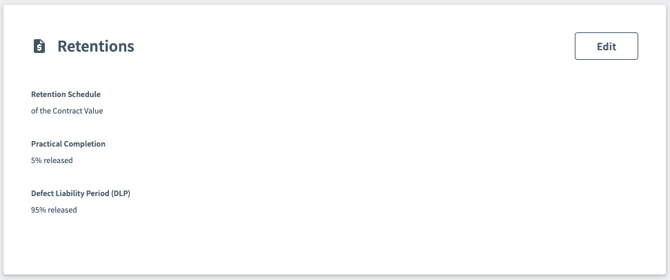
If you don't have Retentions on this project, you can just leave it as is and move on to the next section, otherwise, you will be able to set up a Retention Schedule based on:
- Percentage of Contract Value
- Percentage of Fixed Amount
- Scaled Percentages
Retentions often vary according to the percentages of the job completed. For further detail on how to set these up, go to our Retentions Article.
TAX
The GST tax rate applied to the contract, the standard Goods and Services Tax (GST) rate in New Zealand is 15%.

NOTES
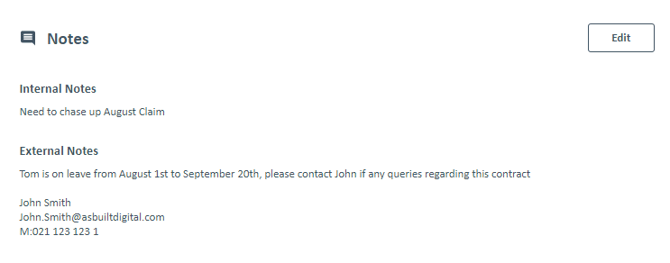
Here you are able to add notes for internal or external use. Internal notes can only be seen by Contract Members that have been invited into the contract. External Notes can be viewed by third party/people outside of the contract.
CONTRACT DOCUMENTS
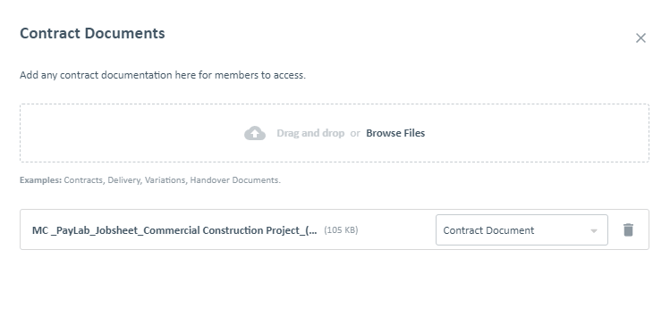
This is where you can store any documents related to the Contract to give Contract members instant access to them. This is ensures documents such as contracts, receipts, handover material, and other documents are kept in one place and not scattered across multiple locations. Files can be uploaded by browsing through your device or dragging and dropping it in.
SETTINGS
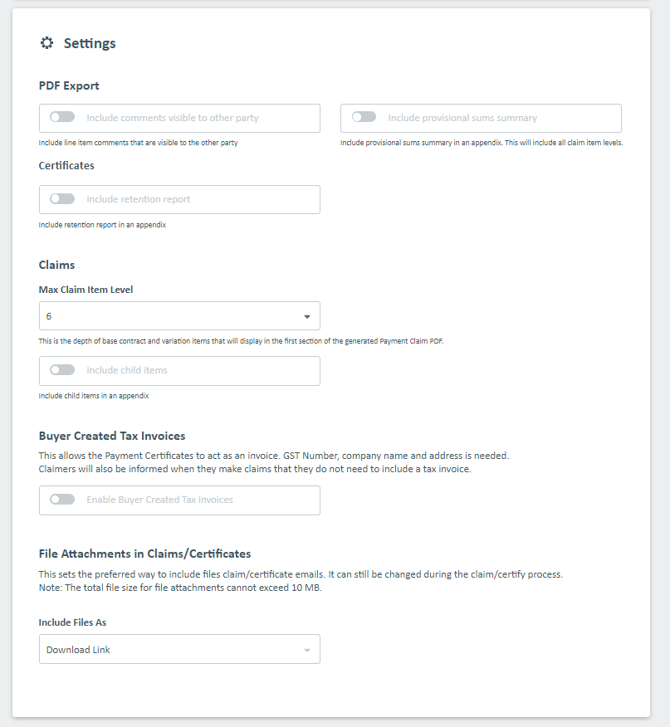
This sets some preferences on what is displayed in the Payment Claim (.pdf) such as:
- Line Item comments - Allows comments to be visible to the other party
- Provisional sums summary - Summary will be in the appendix and will include all claim item levels
- Retention report - Will appear in the appendix.
- Max Claim Item Level - depth of the base contract and variation items that will display
- Child items - in the appendix
- Buyer Created Tax Invoices - Allows the payment schedule to act as an invoice
- File attachment preference - Sets file preference in claim/payment schedule emails are provided as a download link or file attachment.
Getting to Project Settings
There are two locations the Project settings can be accessed;
- The project page
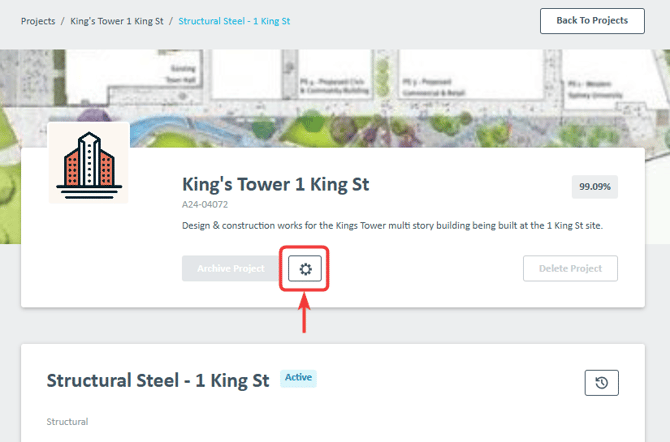
- The contract page. Only Available for certain Organisation types.
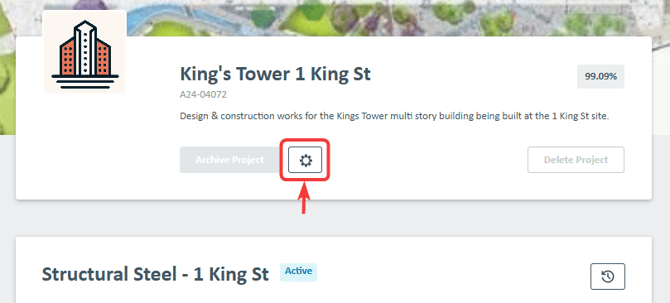
From the project page;
From the contract page;
Access Project Settings by clicking the settings cog wheel beside the 'Archive Project' button.
Getting to Contract Settings
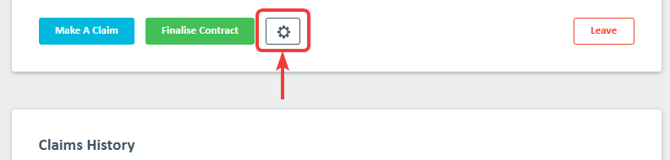
Access Contract Settings from the contract page, beside the 'Make a Claim' button, by clicking the settings cog wheel.